
Create a database service
Step-by-step: add a managed database to an environment, deploy it, verify credentials, and connect an app using reference variables.
This guide walks you from an empty environment to a running database with a verified connection string and an app reading it through a reference variable. For background on how database services fit into dFlow, read Databases overview first.
Time and prerequisites
- You need an application and an environment with working compute (a linked server or managed worker, depending on your setup).
- You need permission to create services and deploy in that workspace.
Outcome: a database service in success state with Internal credentials on Overview, and one environment variable on an app pointing at it without pasting the password.
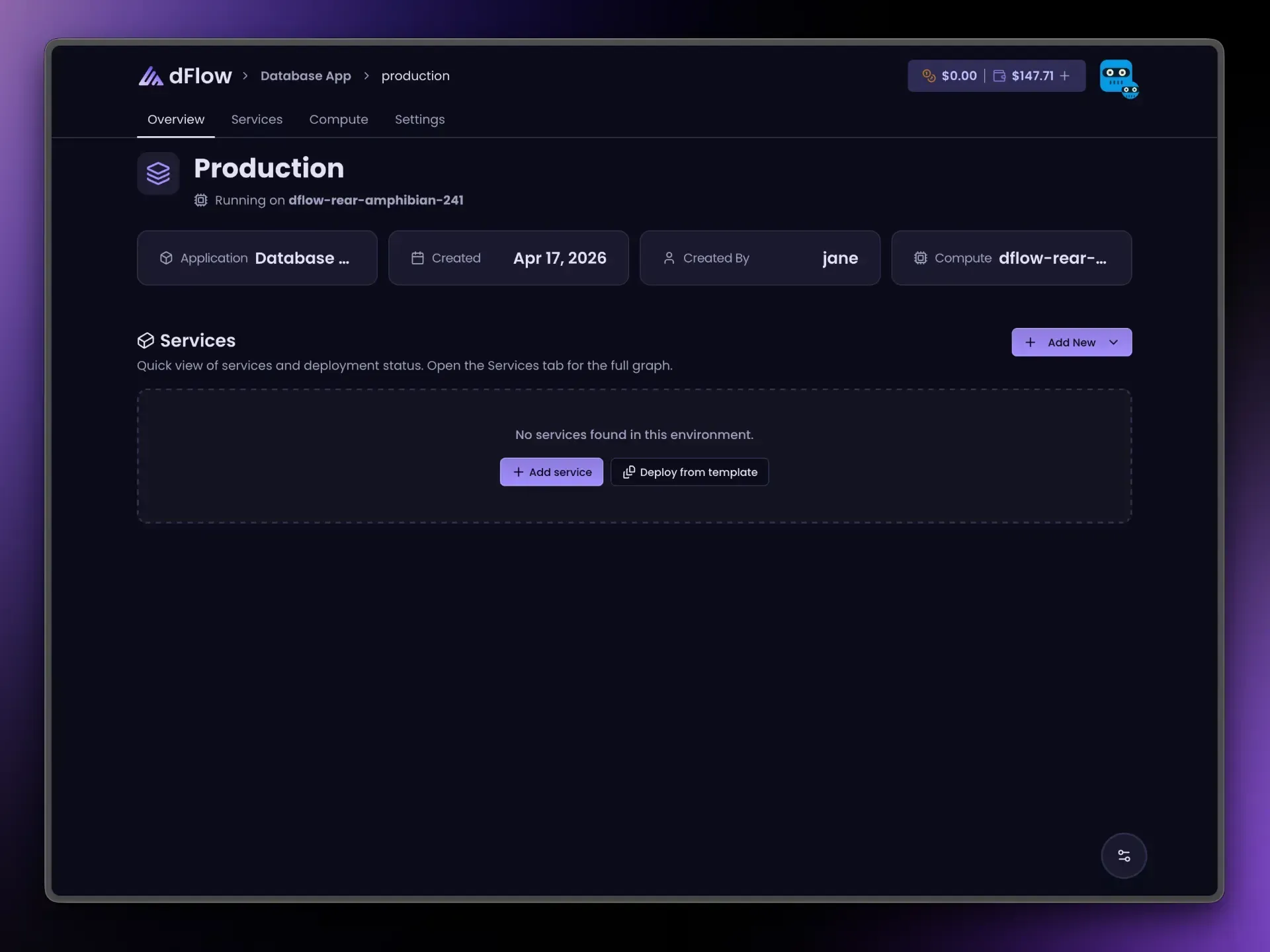
Step 1: Open the right environment
- In the dashboard, go to Applications.
- Click the application that should own this database.
- Open the environment where the database will run.
Pick the same environment as the app that will query the database unless you intentionally split tiers across environments.
Step 2: Start Add service
- In that environment, click Add New.
- Choose Add service.
You use the same flow for app services, Docker services, and databases.
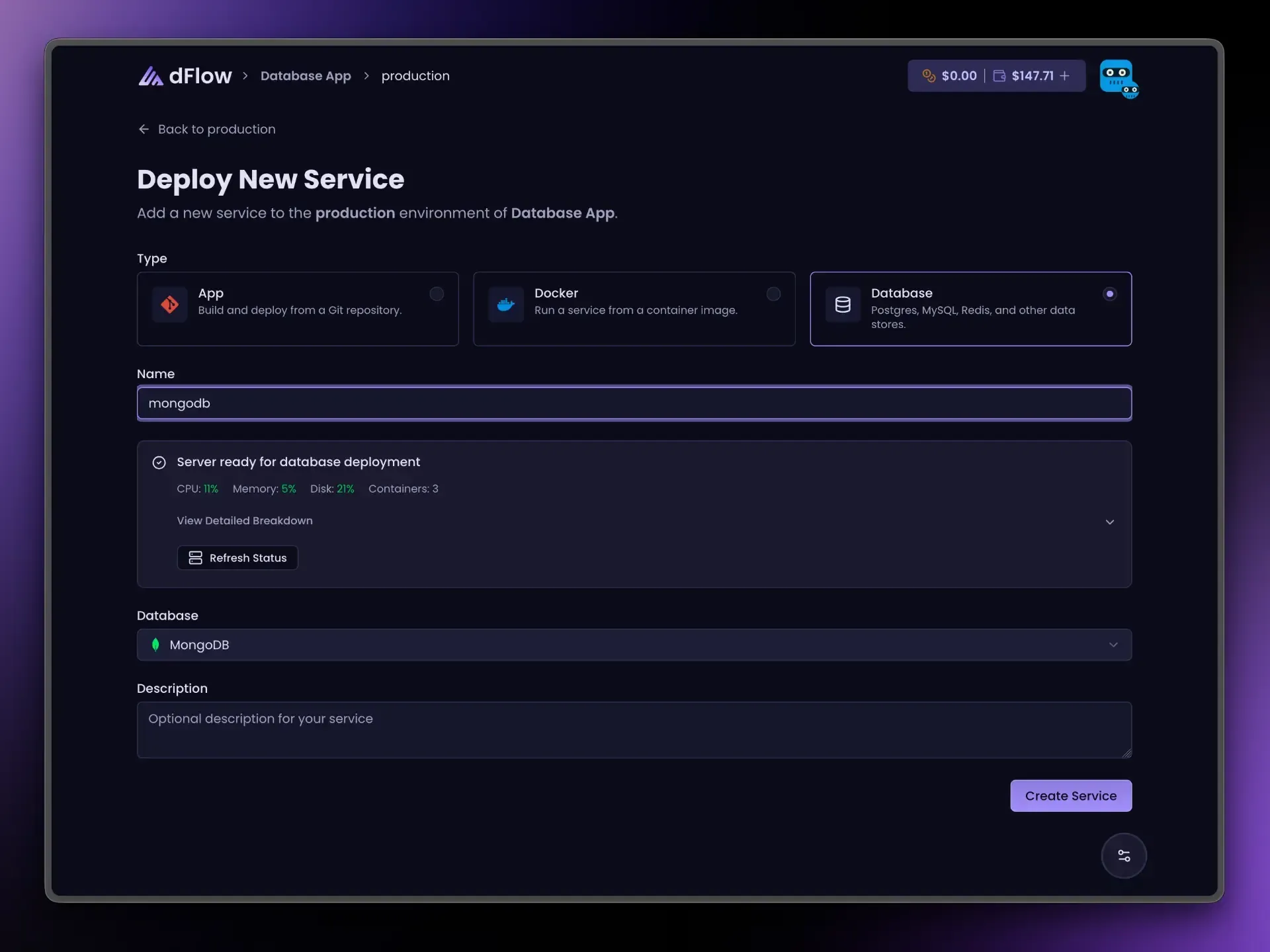
Step 3: Choose Database and an engine
- Select Database.
- Pick an engine (for example Postgres, MySQL, MongoDB).
If you are unsure which engine to use, see the comparison table in Databases overview.
Step 4: Name the service and create it
- Enter a service name you will recognize later. This name appears in reference variables (for example
{{ orders-db.POSTGRES_URI }}), so avoid spaces if you want fewer surprises in env files. - Click Create Service.
At this point dFlow has stored the service definition. The database is not necessarily running on the server yet.
Step 5: Deploy
- Open the new service from the environment’s service list.
- Stay on Overview.
- Click Deploy and wait until the deployment finishes with success.
Watch Deployments or Logs if the run fails or stays pending; copy error text if you need to open a support ticket or read Database troubleshooting.
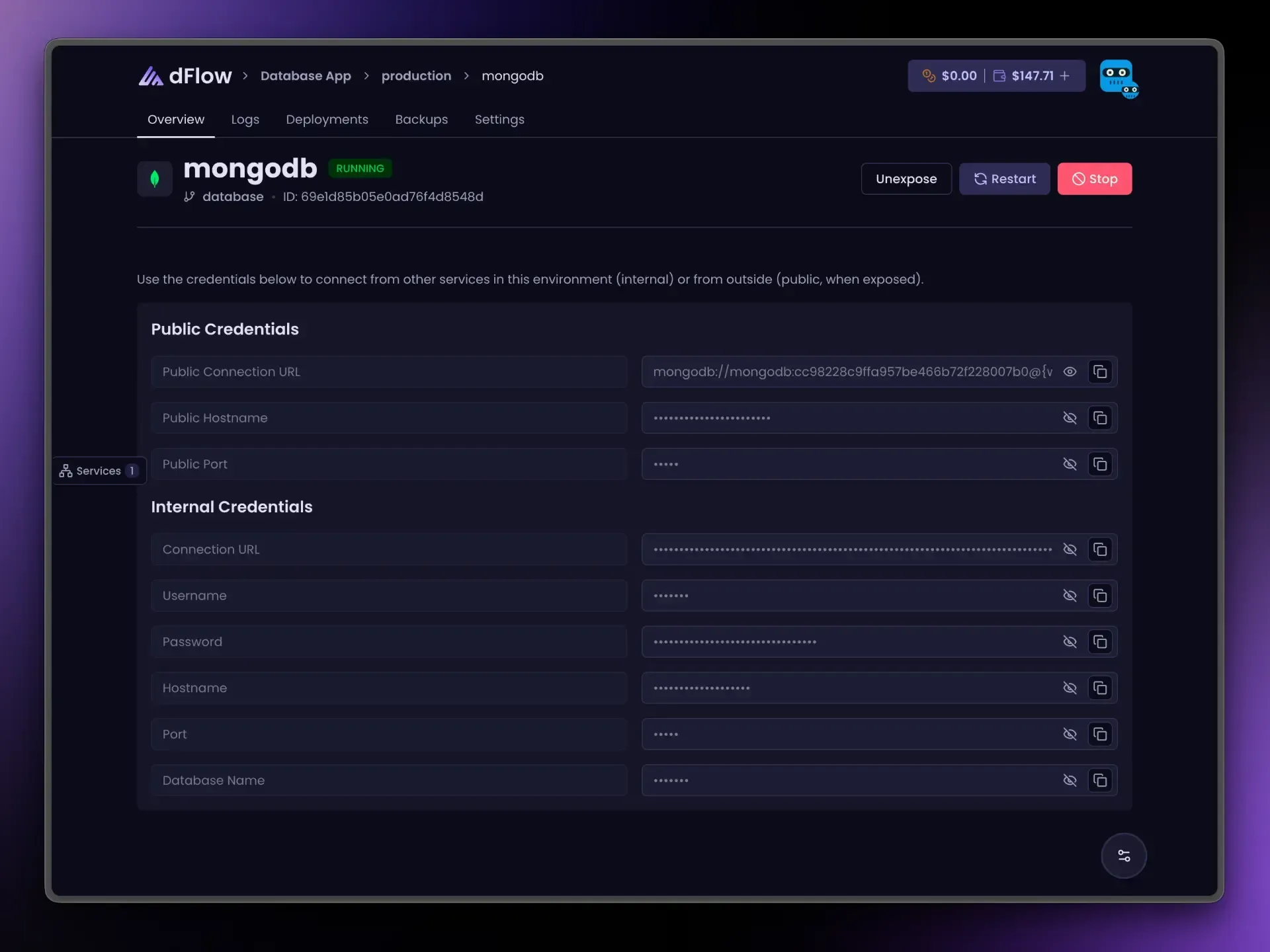
When deploy succeeds, Internal credentials fill in: connection URL, host, port, user, password, and database name (depending on engine).
Step 6: Verify credentials
On Overview:
- Confirm the status shows the database as running (wording depends on engine and UI version).
- Copy the internal connection URL only if you need it for a one-off test. For ongoing use, prefer reference variables in the next step.
Do not share these credentials in public channels; treat them like production secrets.
Step 7: Connect an app with a reference variable
- Open the app or Docker service that should use the database (in the same environment).
- Open the Variables tab (sometimes labeled with Environment in the URL).
- Add or edit a variable (for example
DATABASE_URL). - Click the
{ }control next to the value field. - Choose your database service and the internal URI field (for Postgres,
…POSTGRES_URI).
The value should look like:
{{ your-db-name.POSTGRES_URI }}Replace your-db-name with the exact service name and use the suffix from your engine’s guide (PostgreSQL, MySQL, and so on).
- Redeploy or restart the app service if your stack requires it for new variables to apply.
Step 8 (optional): Expose for external tools
Only if something outside dFlow must connect:
- On the database Overview, click Expose and wait until it completes.
- Use Public credentials (or
_PUBLIC_*reference variables) from the same page.
When you no longer need public access, Unexpose before Stop. Details: Database credentials and connections.
Next steps
- Turn on Backups before major migrations: Backups and restore.
- Hosting a database outside dFlow (RDS, managed cloud, and so on): External database notes.
Related
Databases overview
How database services work in dFlow Applications: create, deploy, connect with internal or public credentials, and use reference variables from your apps.
PostgreSQL
Run PostgreSQL (Postgres) on dFlow: deploy, read internal credentials, wire apps with POSTGRES reference variables, and use Expose when needed.